


Python使用XPath定位元素的入门实战指南
XPath是一种在HTML/XML中精准定位元素的查询语言,Python的lxml、selenium和scrapy等库提供原生支持。通过路径表达式、谓词筛选和逻辑运算符,可灵活定位静态或动态元素。实战案例涵盖动态按钮点击、电商商品抓取、表格行定位,结合浏览器调试可高效解决定位问题。
在自动化测试、爬虫开发或 Web 数据分析的场景里,XPath(XML Path Language) 绝对是个绕不开的角色。它能在 HTML 或 XML 文档中精准定位元素,而 Python 下的 lxml、selenium 和 scrapy 等主流库都对它提供了原生支持。可以说,掌握 XPath 是开发者必备的一项基本功。

这篇文章会从 XPath 的基本语法讲起,再逐步深入到 Python 中的具体用法,最后通过几个实战案例帮你快速上手。内容比较干,建议收藏。
1. XPath 是什么
简单来说,XPath 是一门专门为在 XML/HTML 文档中导航和选择节点而设计的查询语言。它通过路径表达式来实现定位,支持层级关系、属性匹配、条件筛选等一系列高级功能。
XPath 的优势
- 精准定位:相比 CSS 选择器,XPath 的灵活性更强,能应对更复杂的查询需求。
- 跨浏览器兼容:无论在 Chrome、Firefox 还是 Edge 上,XPath 都能无缝工作。
- 支持动态内容:配合
selenium,可以轻松定位页面中动态加载的元素。 - 适用于爬虫:
scrapy和lxml都对 XPath 有完善的支持,解析 HTML 十分方便。
2. XPath 基本语法
2.1 基本路径表达式
| 表达式 | 说明 | 示例 |
|---|---|---|
/ | 从根节点开始 | /html/body/div |
// | 从任意节点开始,不限制层级 | //div(匹配所有 |
. | 当前节点 | ./div(当前节点下的 |
.. | 父节点 | //div/..(获取 |
@ | 匹配属性 | //div[@class="header"] |
2.2 条件筛选(谓词[])
谓词是 XPath 的精华所在,它允许你在方括号内添加筛选条件,精确锁定目标元素。
| 表达式 | 说明 | 示例 |
|---|---|---|
[1] | 选择第一个匹配的元素 | //div[1](第一个 |
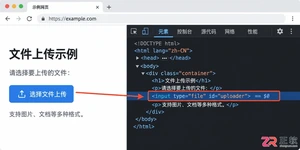
[@id="xxx"] | 匹配特定属性值 | //input[@id="username"] |
[contains(@class, "xxx")] | 属性值包含某字符串 | //div[contains(@class, "header")] |
[starts-with(@class, "xxx")] | 属性值以某字符串开头 | //div[starts-with(@class, "col-")] |
[text()="xxx"] | 匹配文本内容 | //p[text()="Hello"] |
[last()] | 选择最后一个匹配的元素 | //div[last()] |
2.3 逻辑运算符
| 运算符 | 说明 | 示例 |
|---|---|---|
and | 逻辑与 | //div[@class="a" and @id="b"] |
or | 逻辑或 | //div[@class="a" or @class="b"] |
not() | 逻辑非 | //div[not(@class)](选取所有没有 class 属性的 |
3. Python 中使用 XPath
3.1 使用lxml解析 HTML(适用于爬虫)
from lxml import etree

html = """


            Welcome
            This is a demo.


"""

# 解析 HTML
tree = etree.HTML(html)

# 使用 XPath 定位元素
h1 = tree.xpath('//h1/text()')[0]  # 获取  的文本
desc = tree.xpath('//p[@class="desc"]/text()')[0]  # 获取  的文本

print(f"Title: {h1}")  # 输出: Welcome
print(f"Description: {desc}")  # 输出: This is a demo.
3.2 使用selenium定位动态元素(适用于自动化测试)
from selenium import webdriver
from selenium.webdriver.common.by import By

driver = webdriver.Chrome()
driver.get("https://example.com")

# 使用 XPath 定位元素
element = driver.find_element(By.XPATH, '//input[@id="username"]')
element.send_keys("admin")

# 定位多个元素
elements = driver.find_elements(By.XPATH, '//div[contains(@class, "item")]')
for el in elements:
    print(el.text)

driver.quit()
3.3 使用scrapy爬取数据(适用于爬虫开发)
import scrapy

class ExampleSpider(scrapy.Spider):
    name = "example"
    start_urls = ["https://example.com"]

    def parse(self, response):
        # 使用 XPath 提取数据
        titles = response.xpath('//h1/text()').getall()
        links = response.xpath('//a/@href').getall()

        for title, link in zip(titles, links):
            yield {
                "title": title.strip(),
                "url": link,
            }
4. XPath 实战案例
理论说再多,不如直接上手跑几个例子来得实在。下面是几个典型场景,可以对照着试试。
案例 1:定位动态加载的按钮
from selenium import webdriver
from selenium.webdriver.common.by import By

driver = webdriver.Chrome()
driver.get("https://demo.seleniumeasy.com/dynamic-loading-example.html")

# 等待按钮出现并点击
button = driver.find_element(
    By.XPATH,
    '//div[contains(@class, "btn-primary")][@id="startButton"]'
)
button.click()
案例 2:爬取电商网站商品信息
import requests
from lxml import etree

url = "https://example.com/products"
response = requests.get(url)
tree = etree.HTML(response.text)

# 提取商品名称和价格
products = tree.xpath('//div[@class="product-item"]')
for product in products:
    name = product.xpath('.//h2/text()')[0].strip()
    price = product.xpath('.//p[@class="price"]/text()')[0].strip()
    print(f"{name}: {price}")
案例 3:定位表格中的特定行
from selenium import webdriver
from selenium.webdriver.common.by import By

driver = webdriver.Chrome()
driver.get("https://example.com/table-demo")

# 定位第二行的第三列(索引从 1 开始)
cell = driver.find_element(
    By.XPATH,
    '//table//tr[2]/td[3]'
)
print(cell.text)
5. XPath 调试技巧
写 XPath 时难免遇到匹配不上的情况,几个小技巧能帮你快速定位问题。
浏览器开发者工具:
- 按
F12打开 DevTools。 - 按
Ctrl+F输入 XPath 表达式,实时测试是否匹配目标元素。
try-except 处理异常:
try:
    element = driver.find_element(By.XPATH, '//div[@id="non-existent"]')
except Exception as e:
    print(f"定位失败: {e}")
使用 contains() 避免 class 顺序问题:
# 错误写法(class 顺序一旦变化,就会失效)
'//div[@class="flex size-36"]'

# 正确写法(推荐,更健壮)
'//div[contains(@class, "flex") and contains(@class, "size-36")]'
6. 总结
- XPath 是一种非常强大的定位工具,在
lxml、selenium、scrapy等 Python 库中都能大显身手。 - 基本语法 包含
/、//、@、[]这几个关键符号,配合条件筛选和逻辑运算,几乎能搞定任何定位需求。 - 实战技巧:
- 多用
contains(),避免因class顺序问题导致的匹配失败。 - 结合
selenium,可以精准定位动态加载的元素。 - 养成在浏览器中调试 XPath 的习惯,能省去不少排查时间。
- 多用
掌握这些技巧之后,处理 Web 自动化测试、爬虫开发或数据抓取这类任务,效率会有明显提升。希望这篇文章能帮你顺利入门 XPath。








火山引擎是字节跳动旗下企业级云与AI服务平台。聚焦大模型核心能力,依托字节自研豆包多模态大模型,凭借火山方舟一站式平台,提供模型精调、推理部署、智能应用搭建等全链路服务,结合高性能AI算力,助力各行业快速落地大模型数字化与智能化应用。








AirBuddy 3 是面向 macOS 的蓝牙外设增强工具,可集中查看 AirPods、Beats 与苹果设备电量,提供快速连接、播放控制、电量提醒、桌面小组件和多台 Mac 外设接力等功能。

AirServer macOS版可把 Mac 转换为无线投屏接收端,通过 AirPlay 或 Google Cast 接收手机、平板和电脑画面,并支持多设备同时连接、高清镜像及会话录制,适合家庭娱乐、课堂教学、会议演示和应用展示。



Autodesk Maya 是面向影视、电视、动画和游戏行业的专业三维制作软件,集多边形与 NURBS 建模、角色绑定、关键帧和动作捕捉动画、Bifrost 特效模拟、材质开发及 Arnold 渲染于一体,

AirServer Windows版可把电脑变成AirPlay、Google Cast和Miracast无线投屏接收端,适合会议演示、课堂教学及家庭大屏分享。发送设备通常无需另装客户端,并可同时接收和智能排列多个镜像会话。